Where 192.168.1.254 Is Documented as a Management Address
RFC 1918 reserves 192.168.0.0/16 for private networks, meaning 192.168.1.254 is only routable inside a local network. It does not belong to a single router manufacturer by standard.
Major broadband providers and equipment makers document this address for specific hardware:
- AT&T: Support documentation (KM1206322) specifies
http://192.168.1.254for accessing the web management interface across its Wi-Fi gateways, requiring the Device Access Code printed on the unit. - BT: BT documents
192.168.1.254andbthomehub.hometo reach the Hub Manager on BT broadband hubs. - Spark: Spark New Zealand documents
192.168.1.254for managing its Smart Modem range. - Legacy TP-Link Access Points: TP-Link FAQ 318 documents
192.168.1.254as the factory management IP for legacy outdoor APs (such as TL-WA5110G and TL-WA5210G), where DHCP is disabled by default.
Management Address vs. Network Default Gateway
A device management address is not always your active default gateway.
On an ISP-supplied gateway, the management interface and the default gateway address usually share 192.168.1.254. On a standalone access point or range extender, 192.168.1.254 serves only as the local administration address, while your network gateway remains the primary router serving DHCP. Opening 192.168.1.254 will only reach the device assigned to that exact local IP.
Check Whether 192.168.1.254 Is Your Active Gateway
If your primary router uses a different subnet, 192.168.1.254 will not load. Check the value reported as Default Gateway, Router, or Default Route in your device network settings. If your connection shows a different IP address, open that address instead.
Find your router IP address on Windows, Mac, iPhone, Android, and Linux →
When 192.168.1.254 Belongs to an Upstream Modem
If you connect a third-party router behind a provider gateway that uses 192.168.1.254, routing conflicts can occur if both devices use the 192.168.1.x subnet.
To reach the provider gateway interface in this topology, connect an Ethernet cable directly to a LAN port on the provider unit, or adjust the secondary router LAN subnet to avoid IP overlap.
Use Local Management Pages Safely
Access router settings only over trusted local Wi-Fi or a direct Ethernet cable. Do not enter gateway administrative passwords or Device Access Codes from links received in messages or external websites.
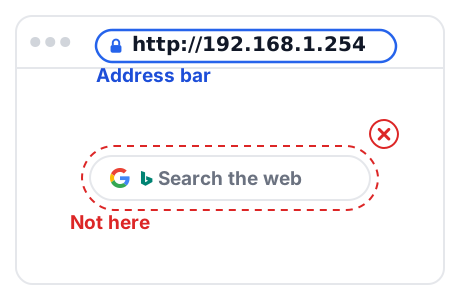
Some gateways present self-signed HTTPS warnings when accessed locally. Confirm the browser address bar contains your verified private gateway IP on your local network before accepting browser security prompts.
Sources and Verification
- IETF RFC 1918: Address Allocation for Private Internets (192.168.0.0/16 private scope). https://www.rfc-editor.org/rfc/rfc1918
- AT&T Support: Gateway User Interface for Wi-Fi gateways (Article KM1206322). https://www.att.com/support/article/u-verse-high-speed-internet/KM1206322/
- BT Broadband Help: Access your broadband hub with BT Hub Manager. https://www.bt.com/help/broadband/learn-about-broadband/learn-about-the-bt-hub-manager
- TP-Link Support: How to configure TL-WA5110G / TL-WA5210G in Client Mode (FAQ 318). https://www.tp-link.com/us/support/faq/318/
- Spark Support: Smart Modem setup and management address. https://www.spark.co.nz/help/internet/modems/